Learn how to connect your property to SIBA (Sistema de Informação de Boletins de Alojamento) through Holidu and automate guest registration for Portugal's local requirements.
What is SIBA and Why Connect It to Holidu?
SIBA is Portugal's official system for managing guest registration forms (Boletim de alojamento). By connecting SIBA to your Holidu account, you can automatically collect guest information and submit it to the Portuguese authorities, ensuring compliance with local registration requirements. Holidu simplifies the process by gathering guest data directly from your bookings and transferring it securely to SIBA.
Before You Start - What are the Prerequisites?
Before activating the guest registration feature with Holidu, ensure you have the following in place:
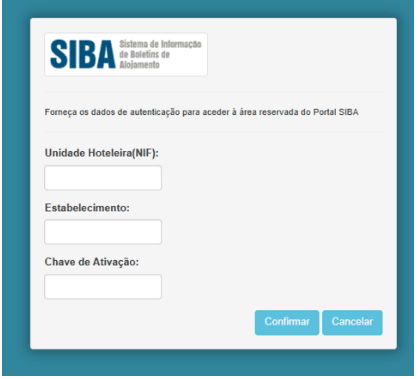
- An active property registration on the official SIBA portal at https://siba.ssi.gov.pt
- Your SIBA credentials, including:
- NIF of the Hotel Unit (Unidade Hoteleira)
- Establishment Code (Estabelecimento)
- Authentication Key (Chave de Ativação) - typically a 12-digit password
- Knowledge of which submission method (Método de envio) is active in your SIBA account. Two methods are supported by Holidu:
- SEF-SIBA web service integration
- SEF-SIBA Página no portal integration
The submission method you select in Holidu must match the one configured in SIBA. To check your current method, log in to your SIBA account at https://siba.ssi.gov.pt/s/an/default.aspx and navigate to "Atualização dos dados de inscrição" (Update registration data).
How to Configure the Guest Online Registration Between Holidu and SIBA
Step 1: Access the Online Check-in Tool
In your Holidu app, navigate to Tools in the left-side menu and then click on Online Check-in.

Step 2: Select Your Property
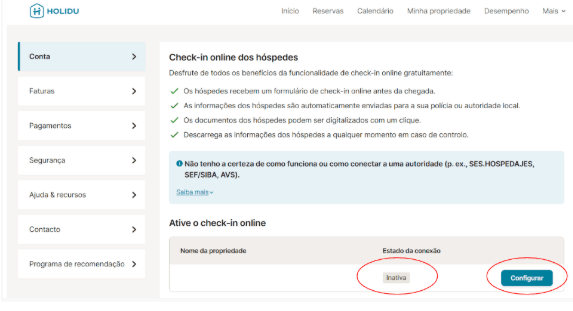
You'll see a list of your properties. Click Configure next to the property you want to connect to SIBA.
Step 3: Fill in Your SIBA Information
Complete the form with your information and credentials from the SIBA Portal. Make sure to enable "Send data automatically to the responsible authority" to activate automatic data transfer.

Step 4: Select Your Submission Method
Choose the sending method that matches your SIBA account configuration. There are two options available:
Option A: SEF-SIBA Web Service Integration
Use the same credentials you use to access the SIBA portal at https://siba.ssi.gov.pt/S/FB.aspx
The required login fields are:
| Field in the Holidu App | SIBA Portal Field |
|---|---|
| Username | Unidade Hoteleira (NIF of the hotel unit) |
| Password | Chave de Ativação (activation key) |
| Establishment number | Estabelecimento (establishment code) |
For the remaining fields (postal code, postal area, contact name, email, and phone number), enter exactly the same information that appears in your SIBA account under "Atualização dos dados de inscrição" at https://siba.ssi.gov.pt/S/au/DadosIdentificacaoActualizacao.aspx
On the same SIBA page, the Método de envio must be set to Web Service for this option to work.
Option B: SEF-SIBA Página no Portal Integration
Use the same credentials you use to access the SIBA portal at https://siba.ssi.gov.pt/S/FB.aspx
The required fields are:
| Field in the Holidu App | SIBA Portal Field |
|---|---|
| Username | Unidade Hoteleira (NIF) |
| Password | Chave de Ativação (activation key) |
| Establishment number | Estabelecimento (establishment code) |
No address or contact details (postal code, postal area, contact name, email, phone number) are needed for this option. Only select "Página no portal" if this is the sending method configured in your SIBA account settings. You can verify it in the SIBA portal under "Atualização dos dados de inscrição".
Step 5: How to Switch Between Submission Methods
The sending method selected in the Holidu app must always match the Método de envio in your SIBA account. Changing it in Holidu alone is not sufficient; the change must be requested from SIBA directly.
- Check the current method in the SIBA portal under "Atualização dos dados de inscrição": https://siba.ssi.gov.pt/S/au/DadosIdentificacaoActualizacao.aspx
- If it is not the method you want, collect your NIF (Tax Identification Number) and the establishment number(s) of every property that needs to be changed
- Send an email to siba@ssi.gov.pt requesting the change of submission method (for example, to Web Service)
- Wait for SIBA's confirmation that the change has been processed
- Once confirmed, return to the configuration form in your Holidu app, select the matching sending method, and complete the required fields for that option
- Click Validate, and once it shows Completed!, click Save Changes

What Happens After the Activation
After you successfully activate the SIBA connection, future bookings with a check-in date at least 6 days after configuration completion will automatically be associated with a guest registration form.
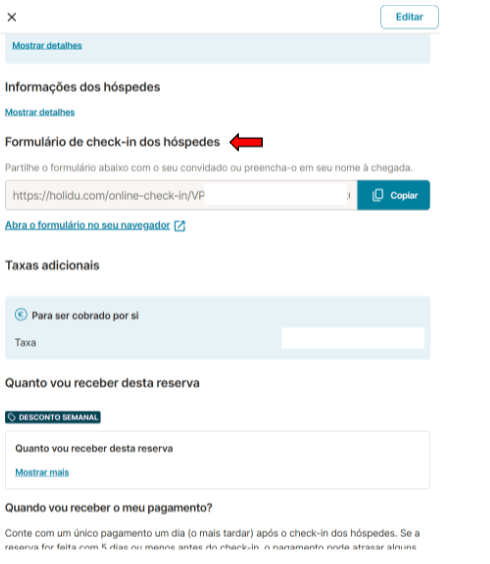
The form is sent to guests via email or through your booking platform's messaging system. Guests will receive the form link immediately after their booking is confirmed and will be reminded if they don't complete it within the required timeframe.
Guest's Point of View
After booking a property connected to SIBA, guests receive a form link via email or through their booking platform message. They must fill out the registration details for all guests, including children and minors.
How Guests Complete the Form
Guests have two options to complete the registration form:
- Enter guest information manually, filling in all required fields
- Scan their ID documents for faster, automatic data entry


Timeline and Reminders
Guest data is collected according to the following timeline:
- Form is sent immediately after booking
- Automatic reminder is sent 5 days prior to the check-in date if the form remains incomplete
- If still incomplete by check-in day, the host can collect the information manually using the same link
- After 11:00 PM on the check-in date, the completed data is automatically sent to the SIBA portal
Form Statuses
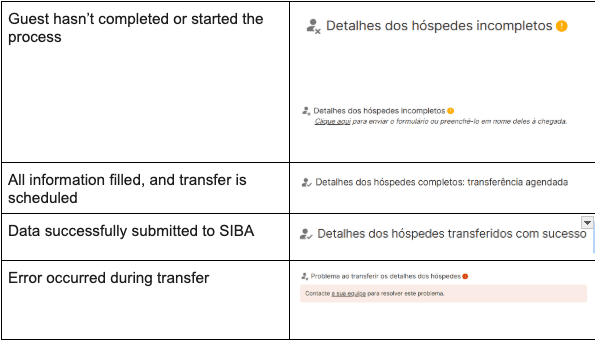
As a host, you can track the status of guest registration forms on each booking page in your Holidu app. Understanding these statuses helps you manage compliance with SIBA requirements.
Common Form Statuses
- Pending: The form has been sent to the guest but not yet completed
- Completed: The guest has filled out all required information
- Submitted: The data has been successfully transferred to SIBA
- Transfer Error: There was an issue sending the data to SIBA
- Incomplete: The form is missing required guest information
How to Fix Incomplete or Failed Data
If you encounter issues with guest data submission, follow these steps:
- For incomplete data: Resend the form link to the guest as a reminder
- For transfer errors:
- Contact Holidu Support at host@holidu.com
- Confirm that the sending method selected in the Holidu app matches the submission method (Método de envio) configured in SIBA — either SEF-SIBA web service integration or SEF-SIBA Página no portal integration
- Verify that all SIBA credentials are correct and up to date
How to Get the Guest Registration Form - Boletim de Alojamento
You can generate and download the guest registration form (Boletim de alojamento) for manual submission or reference purposes. This is useful if you need to provide guests with a physical copy or backup documentation.
Steps to Download Your Guest Form
- Log in to your Holidu account and go to More > Account > Guest Online Registration
- Click Configure next to your property
- Open the Details tab and then select Documents
- Select Generate Guest Form
- Choose the period for which you want the form
- Click Download to save the form to your computer


Frequently Asked Questions
When Do Guests Receive the Form?
Guests receive the form link via email immediately after completing their booking. If the form remains incomplete, they will receive an automatic reminder 5 days before their scheduled arrival date. This ensures they have sufficient time to complete the registration before check-in.
What About Multi-Unit Properties?
Currently, the online guest registration feature is not available for properties with multiple units, such as properties where individual rooms are rented separately. Holidu is actively working to make this feature available for multi-unit properties soon. Please check back for updates or contact Holidu Support for the latest information on when this will be supported.
What Happens to Bookings Made Before Activating SIBA with Holidu?
The form will only be sent automatically if your SIBA configuration was completed at least 6 days before the check-in date. For bookings made before this configuration period, you must manually submit guest data to SIBA using the
Do you want to contact us?
We’re here to help. You can contact us directly if you need assistance or have questions.
Contact us